


Maximizing Your Voctiv AI Phone Assistant: A Complete Setup Guide
Welcome to smarter communication with your Voctiv AI Phone Assistant! If you’ve just joined our platform, you might not realize how many powerful customization options are at your fingertips. This guide walks you through the essential settings that’ll dramatically improve your experience and help you get maximum value from your virtual assistant.
Many users don’t fully utilize these settings and miss out on their assistant’s full potential. Whether you’re managing business calls or organizing your personal life, proper configuration transforms your Voctiv Assistant from a simple answering service into a sophisticated communication tool tailored to your needs.
Critical Settings Checklist
For the best experience with your Voctiv AI Assistant, configure these critical settings:
- Business or Personal Mode – Select the appropriate mode based on your usage needs
- Training Your AI Assistant – Provide detailed information about your business or personal requirements
- Appointments Configuration – Enable or disable based on your scheduling needs
- Calendar Connection – Link your Google Calendar and set your available hours
- Push Notifications – Enable instant alerts about important calls (especially crucial for business users)
Table of Contents
- Understanding Business vs. Personal Mode
- Training Your Voctiv Assistant About Your Business
- Appointments Configuration: To Enable or Not?
- Calendar Integration
- Setting Available Hours
- Push Notifications
- Communication Settings
- Home Screen Navigation
- Phone Confirmation Issues
- How to Restore Your Original Voicemail
- Conclusion
Understanding Business vs. Personal Mode
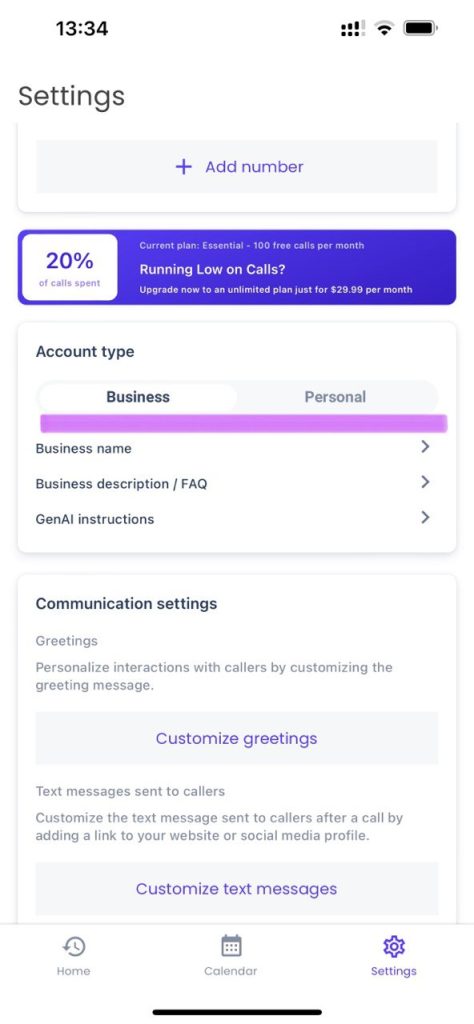
One of your first and most crucial choices during setup is selecting between Business and Personal modes. This fundamental setting determines how your assistant handles incoming calls.
| Mode | Best For | Key Features |
|---|---|---|
| Business Mode | Entrepreneurs, freelancers, service providers, professionals |
|
| Personal Mode | Individual users managing personal communications |
|
Business Mode
When you select Business mode, your assistant understands that incoming calls are potentially from clients or customers. The assistant will:
- Qualify leads by asking relevant screening questions
- Separate high-potential clients from less valuable calls
- Schedule appointments (if enabled) for services or consultations
- Customize interactions based on your specific business type
- Protect you from spam, filtering out unwanted solicitations
Business mode works well for entrepreneurs, freelancers, service providers, and professionals who receive client calls and want to streamline their communication process.
Personal Mode
In Personal mode, your assistant functions as an AI-powered voicemail system. It will:
- Ask questions related to personal lifestyle matters
- Take detailed messages from callers
- Inquire about specifics regarding the caller’s message
- Forward AI-analyzed summaries to you
- Protect you from spam calls
Personal mode’s perfect for individuals managing personal communications more efficiently without business-focused features.
Both modes offer powerful call handling capabilities. Choosing the right one ensures your assistant’s responses align with the nature of your incoming calls.
For individuals and small teams (up to 5 persons)
Training Your Voctiv Assistant About Your Business
To unlock your assistant’s full potential, teach it about your specific business or personal needs. This crucial step allows your assistant to:
- Customize responses to match your business context
- Ask relevant questions to callers
- Provide accurate information about your services
- Better qualify potential clients
How to Train Your Assistant
The primary method for training your assistant is filling out the Business Description field. We strongly recommend including:
- Detailed information about your business or personal use case
- A comprehensive list of your services or offerings
- Price ranges for your services (if applicable)
- Specific questions you typically ask potential clients
- Any specialized information callers frequently request
Consider writing this in a prompt format, similar to how you’d instruct an AI system:
“We’re a mobile pet grooming service specializing in dogs and cats. We offer basic grooming packages starting at $60, deluxe packages from $90, and specialized treatments for pets with skin conditions from $120. When someone calls, please ask: What type of pet do they have? What services are they interested in? Have they used mobile grooming before? Our service area covers downtown and northern suburbs only.”
The more details you provide, the better your assistant represents you and your business. With comprehensive training, your assistant conducts more valuable conversations and provides higher-quality information about potential clients.
For businesses with teams over 5 persons and custom integrations
Appointments Configuration: To Enable or Not?
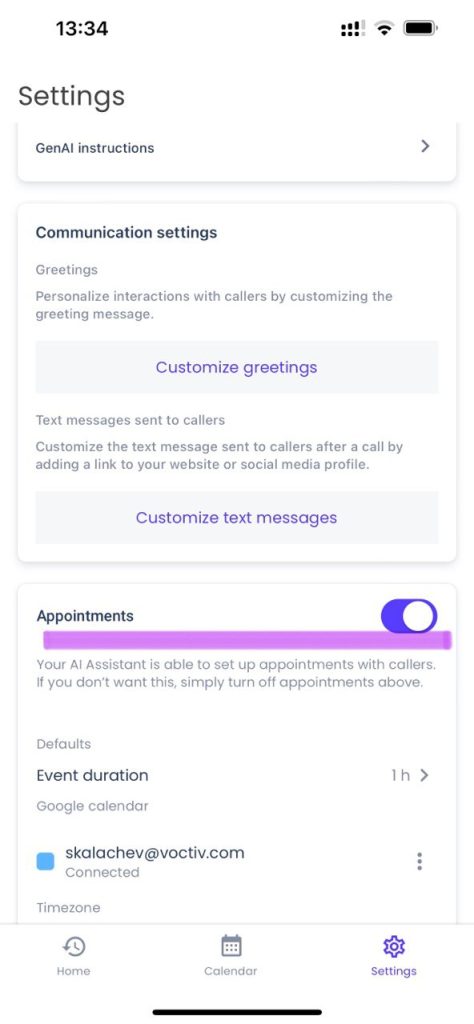
The appointment feature works in both Business and Personal modes but serves different purposes in each context. This setting determines whether your assistant can schedule fixed-time meetings with callers. While appointments are primarily relevant to business users, you can also enable this feature for personal use if you regularly make appointments.
| Appointments Setting | Ideal For | Benefits |
|---|---|---|
| Enabled |
|
|
| Disabled |
|
|
When to Enable Appointments
You should enable appointments if:
- You regularly use and maintain an electronic calendar with accurate availability
- Your business model naturally includes scheduled appointments or consultations
- You prefer automated booking without manual intervention
- You want to eliminate the back-and-forth typically involved in scheduling
With appointments enabled and your calendar connected, your assistant can automatically suggest available times based on your schedule. This allows callers to book slots without your direct involvement.
Important note: When enabling appointments, make sure you connect your Calendar (we currently support Google Calendar). This prevents double bookings or inconvenient scheduling, like an 8am appointment for a service located an hour’s drive away. From our experience, it’s better to manually book high-value customers than automatically schedule them in a problematic time slot that could disappoint.
When to Disable Appointments
You might want to disable appointments if:
- Your service doesn’t typically require fixed appointments
- You need preliminary conversations with clients before scheduling
- Your business involves on-site visits requiring resource verification before booking
- You don’t maintain an electronic calendar that could be synchronized
- You prefer more control over your scheduling process
With appointments disabled, your assistant focuses on qualifying incoming calls by asking screening questions tailored to your business. This helps you identify high-potential clients without committing to specific time slots.
Without appointments enabled, your assistant analyzes callers, asks qualification questions, and distinguishes between targeted and non-targeted clients. You can then follow up using your existing business processes.
Calendar Integration
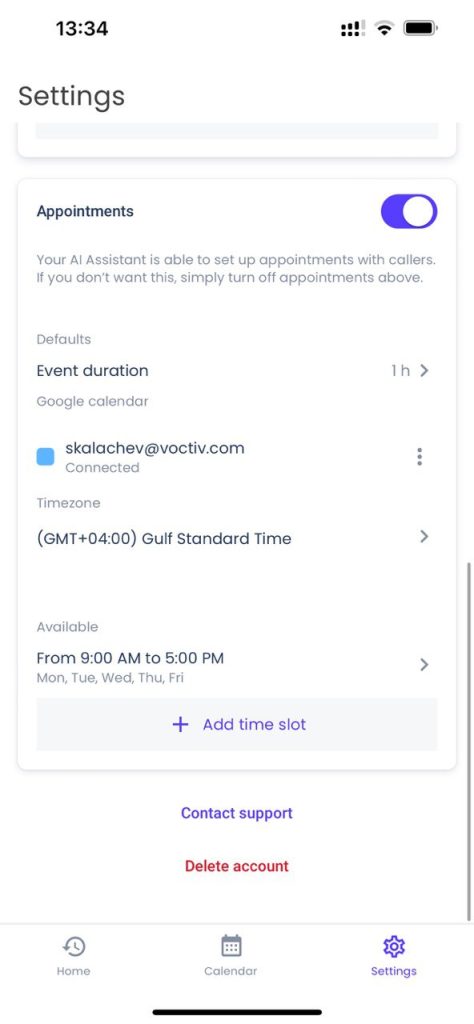
If you regularly use an electronic calendar for business or personal scheduling, we highly recommend connecting it to your Voctiv Assistant.
This integration enables your assistant to:
- See your real-time availability
- Schedule appointments only during your free time
- Automatically add booked appointments to your calendar
- Avoid double-bookings
By connecting your calendar, you create a seamless scheduling system that works around the clock without your direct involvement. This feature’s particularly valuable for businesses where appointments are a regular part of operations—consultancies, beauty services, healthcare providers, and professional services.
Calendars Supported
Currently, Voctiv supports Google Calendar integration. Our roadmap includes support for additional calendar services:
- Apple Calendar (coming soon)
- Microsoft Calendar (coming soon)
Pro tip: If you connect your AI Assistant with Google Calendar and Alexa, you’ll be amazed when Alexa announces that your AI Assistant just booked an appointment completely automatically. It truly feels like living in the future!
Setting Available Hours
To further refine your assistant’s scheduling capabilities, we recommend configuring your available hours. This setting ensures that:
- Your assistant only books appointments during your working hours
- You won’t receive appointments during your off-hours
- Your schedule remains balanced and respects your boundaries
- Callers see only legitimate time slots that work for you
This simple but powerful setting helps maintain work-life balance while maximizing your availability to clients or contacts.
Push Notifications
When it comes to high-value customers, timing’s everything. The faster you’re notified about a potential hot lead, the higher the probability of converting that opportunity into revenue.
To maximize your response time and never miss important calls, we strongly recommend enabling push notifications. With push notifications activated, your Voctiv Assistant can instantly alert you about:
- Conversations where high intent is detected
- Callers who’re ready to make a purchase
- Important information relevant to you or your business
- Scheduled appointments
These instant notifications include AI-generated summaries that highlight the most critical information from the call. This allows you to quickly assess the situation and prioritize your follow-ups accordingly.
Enable push notifications in your device settings to ensure you’re always the first to know when a valuable opportunity comes your way.
Communication Settings
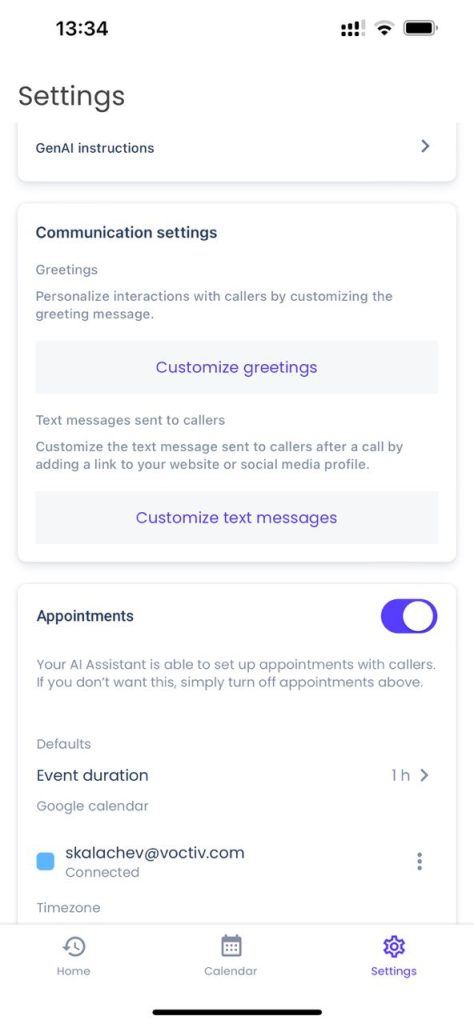
In the Settings menu, you’ll notice a section called “Communication Settings.” Important note: This feature’s currently being finalized and is only available to a limited number of test users. If you see this section in your app, it doesn’t necessarily mean it’s active for your account.
Coming soon to all users, Communication Settings will allow you to:
- Tailor your greeting message to create a personalized welcome for callers
- Customize text messages sent by your assistant
- Configure your assistant to share specific links with callers, such as:
- Payment links
- Booking links
- Legal document opt-in forms
- Any other links relevant to your business processes
This powerful feature will soon enable you to seamlessly integrate your Voctiv Assistant into your existing business workflows, creating a more cohesive experience for both you and your callers.
Stay tuned for the official release of this feature to all users!
Home Screen Navigation
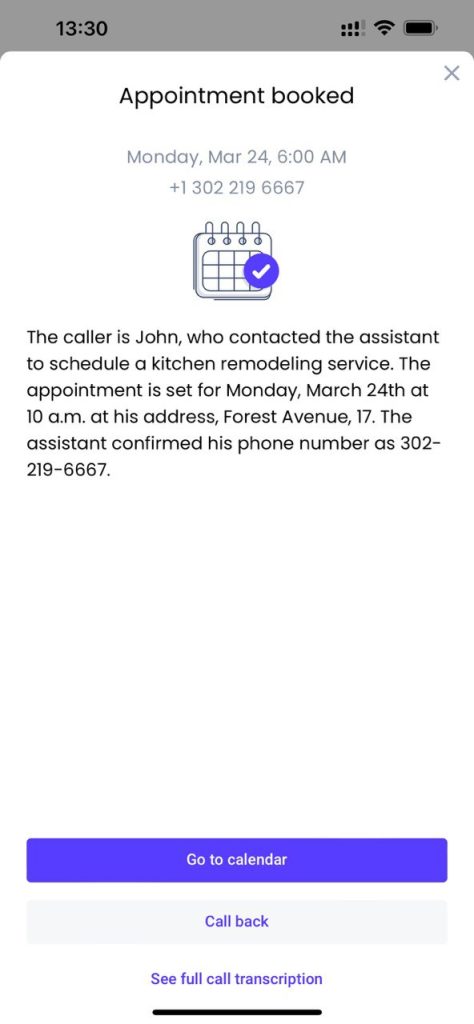
The Home screen’s your dashboard for all calls handled by your Voctiv AI Assistant. Here’s how to make the most of this feature:
Calls are automatically categorized into two main sections:
- Important: High-value calls that deserve your immediate attention
- Other: Includes spam, scam attempts, silent calls, and other non-priority communications
For each call, you can:
- Tap to view an AI-generated summary of the conversation
- Select “See full call transcription” to review the complete dialogue
- Listen to the audio recording of the call
- Download the call recording for use elsewhere (perfect for training, quality assurance, or record-keeping)
This intuitive organization helps you quickly identify which calls require immediate attention and which can be handled later, if at all.
Phone Confirmation Issues
If you can’t proceed with phone confirmation, it may be because you’re using an IP phone number (Google Voice or any other “non-mobile” providers). In these cases, standard verification processes may not work correctly.
Don’t worry—we have solutions available! Please contact us to discuss a custom solution tailored to your specific situation. Our team can help set up alternative verification methods that work with your existing phone infrastructure.
Need help with IP phone number setup?
How to Restore Your Original Voicemail
If you decide to return to your carrier’s original voicemail service, the process is straightforward. We’ve created a detailed guide to help you restore your original voicemail settings.
For step-by-step instructions on how to revert to your mobile carrier’s voicemail system, please visit: How to Restore My Original Voicemail
The guide includes specific instructions for all major carriers, ensuring a smooth transition back to your previous voicemail setup if you choose to do so.
Conclusion
Proper configuration of your Voctiv AI Phone Assistant is the key to unlocking its full potential. By taking time to select the appropriate mode (Business or Personal), decide on appointment settings, provide comprehensive business information, connect your calendar, and set your available hours, you transform a good tool into an exceptional one.
These settings aren’t just technical configurations—they’re strategic choices that directly impact how efficiently you manage communications and how effectively your assistant represents you to callers.
We encourage you to revisit these settings periodically as your needs evolve. Your Voctiv Assistant’s designed to grow with you, adapting to changes in your business or personal requirements with just a few adjustments to these core settings.
Ready to take your Voctiv AI Phone Assistant to the next level? Start by reviewing your current settings today and implementing the recommendations from this guide. Your future self (and your callers) will thank you!
For individuals and small teams (up to 5 persons)
Frequently Asked Questions
Can I switch between Business and Personal modes after initial setup?
Yes, you can switch between Business and Personal modes anytime through the settings menu. This flexibility allows you to adapt your Voctiv AI Phone Assistant to changing needs.
How detailed should my business description be?
We recommend being as comprehensive as possible. Include your services, pricing structure, business hours, qualifying questions, and any specialized information your assistant should know. The more details you provide, the better your assistant can represent your business to callers.
Does Voctiv work with calendar systems other than Google Calendar?
Currently, Voctiv directly integrates with Google Calendar. If you use a different calendar system, please contact our support team to discuss potential integration options or workarounds for your specific setup.
Can I customize the questions my assistant asks callers?
Yes, you can influence the questions your assistant asks by including them in your business description. For example, if you want your assistant to ask callers about their budget range, include “Please ask callers about their budget range” in your business description.
[Remember to visit our support page if you need any assistance with configuring your Voctiv AI Phone Assistant.]
Boost Your Business with Voctiv’s New AI Lead Qualification Feature
Introducing AI Lead Qualification: Your Smart Business Call Assistant
What You’ll Discover
We’re excited to introduce a game-changing update to the Voctiv AI Call Assistant: AI Lead Qualification. This feature streamlines your inbound call process using artificial intelligence to qualify leads automatically, helping you focus on prospects that matter most.
Simply provide your business name and a brief service description, and Voctiv’s AI generates tailored qualifying questions to assess each caller’s interest and readiness to engage.
In this article, we’ll walk you through how AI Lead Qualification works, why it’s beneficial, and how to set it up in just a few easy steps.
What Is AI Lead Qualification?
AI Lead Qualification is an automated system that evaluates incoming callers based on customized questions about your business. The Voctiv AI Call Assistant:
- Asks Personalized Questions: Generates inquiries specific to your services
- Evaluates Caller Responses: Gauges the level of interest and urgency
- Prioritizes Leads: Helps you identify high-potential prospects quickly
For example:
- A cleaning service might ask, “Are you looking for a one-time deep clean or recurring service?”
- A bakery specializing in custom cakes might inquire, “Do you have a specific date for your event?”
This intelligent approach ensures you spend your valuable time on leads most likely to convert.
Why Use AI Lead Qualification?
- Save Time: Automate the initial screening process to focus on serious inquiries
- Increase Efficiency: Reduce manual workload by letting AI handle preliminary questions
- Improve Conversion Rates: Engage promptly with prospects who are ready to take action
According to sales industry research, businesses that implement lead qualification systems see up to 50% improvement in sales productivity by focusing on qualified prospects.
How to Set Up AI Lead Qualification
Follow these simple steps to activate and customize the AI Lead Qualification feature in your Voctiv app:
Step 1: Update the Voctiv App
Ensure you’ve got the latest version of the Voctiv AI Call Assistant app:
- Visit the Apple App Store or Google Play Store:
- iOS App Store
- Google Play Store
- Search for Voctiv AI Call Assistant
- Tap Update if an update’s available
Step 2: Choose Your Preferred Mode
Voctiv now offers two modes for handling incoming calls:
| Mode | Description | Best For |
|---|---|---|
| Appointment Scheduling Mode | The assistant books appointments directly into your calendar | Service-based businesses needing automated scheduling |
| AI Lead Qualification Mode | The assistant qualifies callers without scheduling appointments | Businesses focused on lead screening and prioritization |
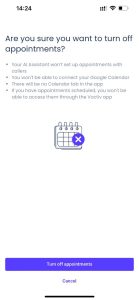
To enable AI Lead Qualification Mode:
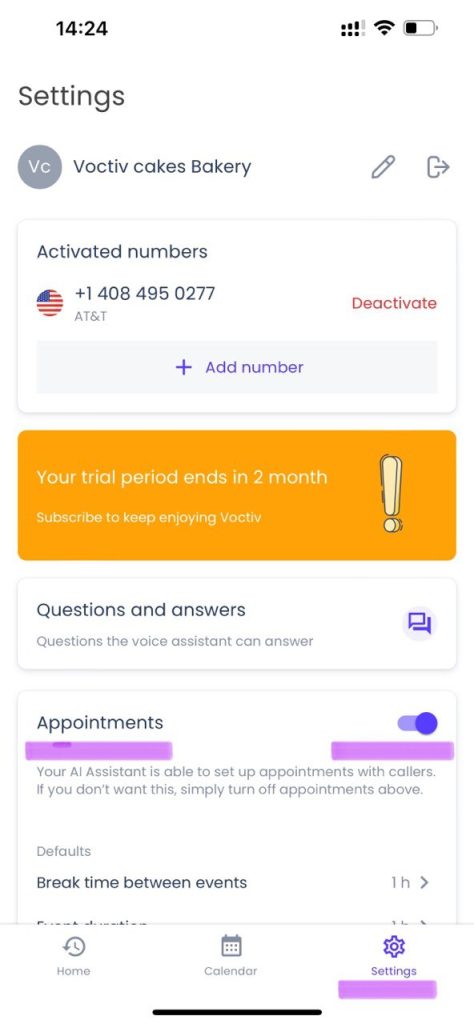
- Open the Voctiv app
- Navigate to Settings
- Tap on Appointments
- Toggle the Appointments feature Off
 .
. 
Step 3: Provide Your Business Information
Accurate business details enable the AI to generate effective qualifying questions.
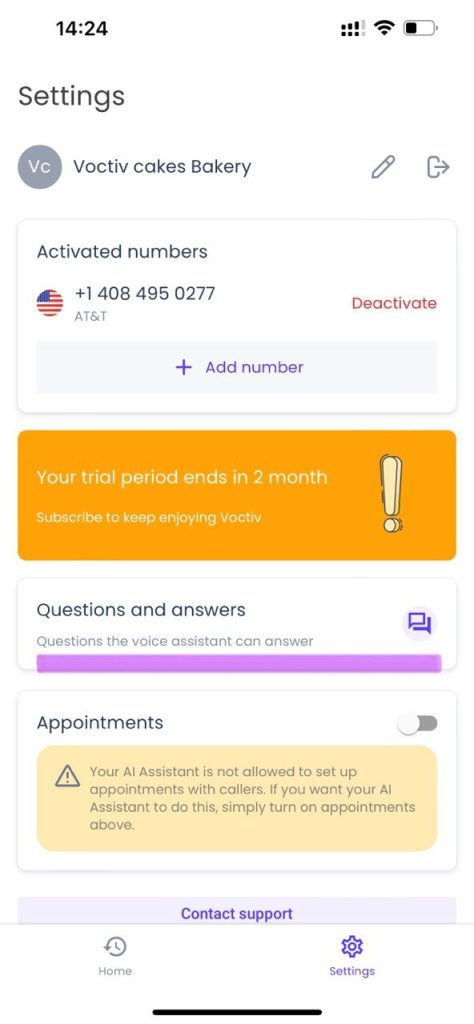
- Go to Settings
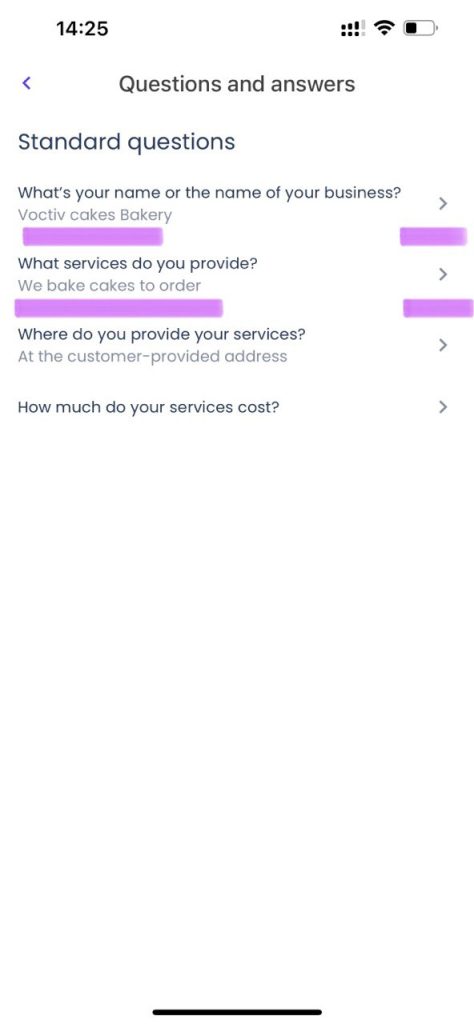
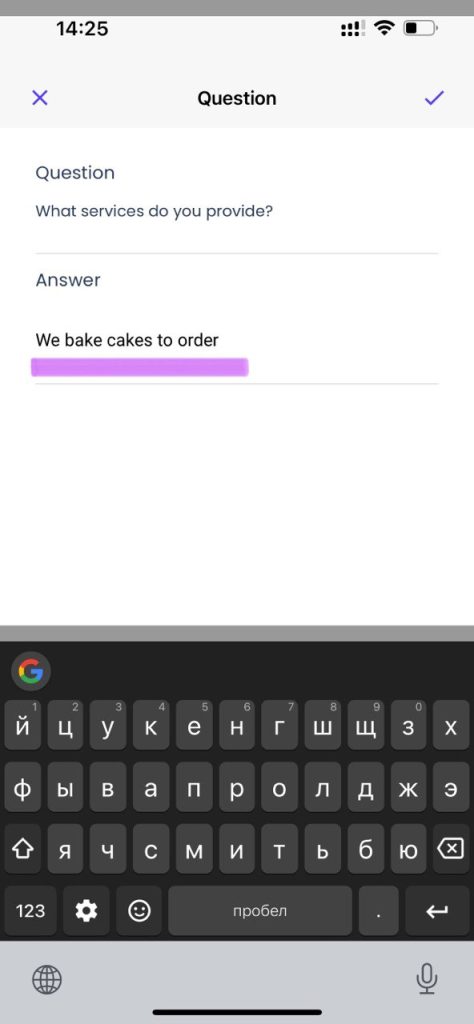
- Select Questions and Answers
- In the Business Description section, enter a brief description of your services
- Examples:
- “We bake custom cakes for weddings and special events.”
- “We offer residential and commercial cleaning services.”
- “We specialize in roofing installations and repairs.”
 .
.  .
. 
Step 4: Test the Feature
After updating your settings:
- Make a Test Call: Dial your business number to experience the AI interaction firsthand
- Listen to the Qualifying Questions: Ensure they align with your services and desired customer responses
- Adjust if Necessary: If the questions aren’t quite right, refine your business description for better accuracy
Benefits of Voctiv’s AI Lead Qualification
- Personalized Interaction: Engage callers with questions relevant to their needs
- Immediate Insights: Quickly determine a caller’s intent, helping you prioritize follow-ups
- Enhanced Productivity: Focus your efforts where they matter most, improving overall business efficiency
- 24/7 Availability: Never miss a potential lead, even outside business hours
According to business automation experts, companies using AI-powered lead qualification systems report up to 30% faster sales cycles and improved customer satisfaction scores.
Need Assistance?
If you’ve got questions or need help setting up the AI Lead Qualification feature:
- Email Us: Reach out at skalachev@voctiv.com
- Visit Our Support Center: Check out our support resources for additional guides
- We’re Here to Help: Our support team’s ready to assist with any inquiries or feedback
Get Started Today
Don’t let valuable leads slip through the cracks. Activate the AI Lead Qualification feature in your Voctiv app today and experience a smarter way to manage inbound calls.
Ready to transform your business communication? Download Voctiv now and start qualifying leads automatically.
Ultimate Guide: How to Auto Answer Calls for Your Business
How to Auto Answer Calls for Your Business: Complete 2025 Guide
Key Takeaways
Missing calls means missing revenue. Small businesses lose thousands monthly when they can’t answer every incoming call. Voctiv AI Call Assistant ensures you’re always available to capture leads and serve customers—without hiring additional staff.
What you’ll gain with automated call answering:
- 24/7 availability – never miss another opportunity
- Intelligent call handling – answers FAQs and schedules appointments automatically
- Instant notifications – stay informed via SMS about urgent calls
- Complete transcripts – review every conversation at your convenience
- Seamless integration – works with your existing phone system and calendar
Discover how AI-powered call answering transforms your business operations below.
Why Auto Answering Calls Matters for Small Businesses
Every missed call represents a lost opportunity. When you can’t answer, potential customers move on to competitors. They won’t wait for callbacks.
Auto answering calls solves this critical problem. With Voctiv AI Call Assistant, your business stays accessible around the clock. You’ll capture every lead and enhance customer satisfaction simultaneously.
Traditional answering services cost thousands monthly. They’re also limited by human availability and training constraints. AI assistants eliminate these barriers entirely.
Smart Solutions from Voctiv AI Call Assistant
Modern call automation goes beyond simple message-taking. Here’s what advanced AI call handling delivers:
- Round-the-Clock Service: Your business remains open 24/7. The AI answers immediately, whether it’s 3 PM or 3 AM.
- Smart Interaction: More than just answering—it handles FAQs, books appointments, and syncs directly with Google Calendar.
- Transcribed Voicemails: Visual voicemail and detailed transcripts let you prioritize callbacks. You’ll know exactly what each caller needs.
The system learns your business operations quickly. It adapts to your specific needs without lengthy programming sessions.
Real Results from Business Owners
Our users consistently report dramatic improvements in customer engagement. It’s not just about answering calls—it’s about maximizing every interaction.
Small business owners see better conversion rates. Solopreneurs reclaim hours previously spent on phone management. The ROI becomes apparent within weeks.
One service provider noted they’ve captured leads that would’ve been lost. Another mentioned improved customer satisfaction scores across the board.
Getting Started with AI Call Answering
Implementation couldn’t be simpler. Voctiv AI Call Assistant works as a mobile app for iOS and Android. Setup takes minutes, not days.
You’ll get a 1-week free trial to test the system. There’s zero risk and no credit card required upfront. Experience the difference before committing.
The potential cost of missed calls far exceeds the investment. You’re not just buying software—you’re protecting revenue and scaling your communication capacity.
Transform Your Business Communication Today
Learning how to auto answer calls strategically positions your business for growth. You’re solving communication gaps while enhancing customer experience.
With Voctiv AI Call Assistant, every call becomes an opportunity seized. You’ll never wonder what you missed or worry about after-hours inquiries again.
Start optimizing your call management today. Visit ai.voctiv.com and see how AI transforms your business communication. Your next customer is calling—make sure you’re ready to answer.
How to Restore My Original Voicemail
How to Cancel Voctiv and Restore Your Original Voicemail
Quick Overview
If you’ve tried Voctiv and it’s not the right fit, you can restore your original voicemail quickly. This guide walks you through canceling your subscription and disabling call forwarding. Whether you’re returning to your carrier’s voicemail or simply removing the AI assistant, these steps will get everything back to normal.
What you’ll learn:
- How call forwarding works with your carrier
- Why manual cancellation is required
- Step-by-step deactivation instructions
- Carrier-specific codes for AT&T and Verizon
- Troubleshooting tips if issues arise
Understanding Call Forwarding
What is Call Forwarding?
Call forwarding redirects incoming calls to another number or service. When you miss a call, it can route to Voctiv’s AI assistant instead of your regular voicemail. This lets the assistant handle calls on your behalf.
Why Manual Cancellation is Necessary
Your phone carrier manages call forwarding, not apps like Voctiv. For security, carriers require you to change forwarding settings directly from your device. This ensures only you control where calls go.
Even after deleting the Voctiv app, call forwarding stays active. You must manually cancel it. We include these codes in our app’s onboarding and offboarding processes, but we’ll share them here too.
Canceling Your Voctiv Subscription
How to Deactivate Your Account in the App
To stop using Voctiv’s AI assistant and restore your original voicemail, deactivate your account:
- Sign into the Voctiv app
- Go to the Settings menu
- Tap “Deactivate” next to your phone number
- Cancel call forwarding during deactivation
Following this process cancels call forwarding and restores your voicemail settings.
Restoring Your Voicemail Without the App
Already deleted the app? You can still cancel call forwarding and restore your voicemail. Follow the steps for your carrier below.
| Carrier | Code to Dial | Alternative Code | Instructions |
|---|---|---|---|
| AT&T | #21# | ##002# | Dial the code, press call, listen for confirmation, then hang up |
| Verizon | *73 | N/A | Dial the code, press call, listen for confirmation, then hang up |
| Other Carriers | Try AT&T or Verizon codes | Contact carrier support | If codes don’t work, reach out to your carrier for help |
For AT&T Users
- Cancel all call forwarding: Dial #21# to deactivate forwarding
- Alternative method: Dial ##002# to cancel all forwarding types
- Next steps: Press call and listen for confirmation, then end the call
For Verizon Users
- Cancel call forwarding: Dial *73 to deactivate
- Next steps: Press call and listen for confirmation, then end the call
For Other Carriers
- Try these first: The AT&T and Verizon methods often work with other providers
- Need help? Contact your carrier if these methods don’t work. They’ll help you cancel forwarding
Frequently Asked Questions
What Happens After I Cancel Voctiv?
Once you cancel Voctiv and disable call forwarding, your phone returns to its original voicemail. Your carrier’s voicemail service handles missed calls like before.
Why Do Calls Still Forward After Uninstalling?
Uninstalling doesn’t cancel call forwarding automatically. Your carrier controls these settings. You must manually cancel forwarding using the steps above.
How Can I Confirm Forwarding is Canceled?
Make a test call to your phone. If it goes to your original voicemail, forwarding is disabled. You can also check your phone’s call settings to verify.
Troubleshooting & Support
Common Issues and Solutions
Having trouble? Here are quick fixes for common problems:
| Issue | Solution |
|---|---|
| Call forwarding won’t cancel despite following steps | Try the alternative code for your carrier. If that doesn’t work, contact carrier support |
| Voicemail not working after canceling forwarding | Restart your phone and make a test call. Wait 5-10 minutes for changes to take effect |
| Unsure which carrier code to use | Check your carrier’s website or call customer service for specific codes |
| Still getting Voctiv notifications | Sign back into the app and verify deactivation was completed |
If these solutions don’t help, your carrier’s support team can assist with call forwarding settings. They have direct access to your account and can make changes immediately.
Final Thoughts
Restoring your original voicemail is straightforward once you know the steps. The key is manually canceling call forwarding through your carrier. If you follow these instructions, your voicemail should work normally.
Remember, simply deleting the app isn’t enough. Call forwarding stays active until you cancel it using the codes provided or through your carrier’s customer service.
Need more help? Your phone carrier’s support team knows these systems inside and out. They’re your best resource for carrier-specific questions. For more information about how Voctiv works, visit our website.
Out of Hours Call Handling: After Hours Answering For Small Businesses – 2025 Guide
Out-of-Hours Call Handling: Complete 2025 Guide for Small Businesses
What is out-of-hours call handling?
Out-of-hours call handling answers and routes business calls outside normal hours—via on-call staff, live services, or AI assistants—preventing lost leads and addressing urgent issues. (US: “after-hours answering service.”)
Table of Contents
- • Executive Summary: Transform Your Call Management
- • Why Out-of-Hours Call Handling Matters
- • Your Call Handling Options Compared
- • Step-by-Step Setup Guide
- • How AI Call Assistant Works
- • Industry-Specific Solutions
- • Real Customer Success Stories
- • Pricing & ROI Calculator
- • Frequently Asked Questions
Executive Summary: Transform Your Call Management
Every missed call after business hours costs money. Whether you’re a contractor getting emergency repair requests or a dental practice with patients calling about urgent issues, you can’t afford to lose leads when unavailable. This guide covers out-of-hours call handling (known as after-hours answering service in the US) solutions that capture every opportunity.
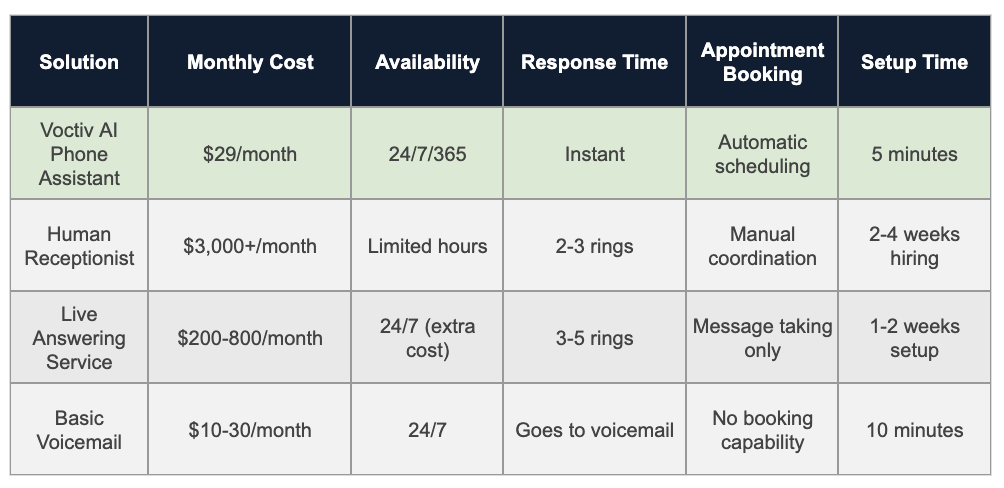
Sources & Assumptions: Pricing based on industry averages as of 2025. Setup times reflect typical implementation processes.
AI Phone Assistant Advantages:
- Handles 100% of calls with zero missed opportunities
- Books appointments directly into your calendar
- Blocks spam calls automatically
- Works in multiple languages
- Costs 99% less than hiring a receptionist
Ready to see how this works for your business? Let’s explore the complete setup guide below.
For individuals and small teams (up to 5 persons) – mobile app solution:
Why Out-of-Hours Call Handling Matters for Small Businesses in 2025
Your competitors answer their phones. That’s today’s harsh reality. When customers need something urgently—whether it’s a plumbing emergency at 11 PM or a last-minute appointment cancellation—they’re calling multiple businesses until someone picks up.
Studies show 67% of customers won’t leave voicemail, and 85% will call a competitor if you don’t answer within 3 rings. For small businesses, every missed after-hours call potentially means:
- $150-$500 in lost revenue per call (depending on your industry)
- A customer who becomes a competitor’s client permanently
- Negative word-of-mouth from frustrated potential customers
- Reduced search rankings if customers can’t reach you easily
Your After-Hours Call Handling Options Compared
Let’s break down realistic options for handling calls when you’re unavailable, including costs and revenue impact:
Option 1: Do Nothing (Voicemail Only)
How it works: Calls go straight to voicemail after hours. You check messages next business day.
Cost: $10-30/month
Pros:
- Cheapest option available
- Zero setup complexity
- No training required
Cons:
- 80-90% of callers won’t leave messages
- Lost opportunities go straight to competitors
- No appointment booking capability
- Urgent issues remain unaddressed
Revenue impact: With 20 after-hours calls monthly at $200 average value, you’re potentially losing $3,200-$3,600 monthly in revenue.
Option 2: On-Call Rotation (Staff-Based)
How it works: Team members take turns being on-call, typically using call forwarding to personal phones.
Cost: $500-1,500/month (overtime pay, burnout risk)
Pros:
- Human interaction with familiar staff
- Handles complex questions effectively
- Direct problem resolution
Cons:
- Employee burnout and decreased morale
- Inconsistent service quality
- Overtime costs add up quickly
- Coverage gaps during vacations and sick days
Option 3: Traditional Answering Service
How it works: Third-party company answers calls using human operators following your scripts.
Cost: $200-1,200/month (varies by call volume)
Pros:
- Professional human answering
- 24/7 coverage
- Message taking and basic screening
Cons:
- Operators lack your business-specific knowledge
- Per-minute or per-call pricing gets expensive
- Limited appointment booking capabilities
- Quality varies between operators
Option 4: AI Phone Assistant (Recommended)
How it works: AI-powered system answers calls, books appointments, and handles inquiries automatically.
Cost: $29-50/month
Pros:
- 100% availability with zero burnout
- Instant response time
- Direct calendar integration
- Automatic spam filtering
- Multilingual support
- Learns your business automatically
Cons:
- May struggle with highly complex scenarios
- Some customers prefer human interaction
- Requires clear guidelines for emergency escalation
Learn more about implementing AI phone solutions for your business.
Step-by-Step Setup Guide for After-Hours Coverage
Setting up professional after-hours call handling doesn’t need to be complicated. Here’s your roadmap:
Step 1: Audit Your Current Call Situation
Before choosing a solution, understand your needs:
- How many after-hours calls do you receive weekly?
- What percentage are urgent vs. routine?
- What’s the average value per converted call?
- Do you need multilingual support?
- What appointment types need booking?
Step 2: Choose Your Solution
Match your needs to the right option:
- Under 50 calls/month: AI assistant or basic answering service
- 50-200 calls/month: AI assistant (best value)
- 200+ calls/month: AI assistant with human backup for complex cases
- Medical/legal fields: Consider compliance requirements for healthcare communication
Step 3: Configure Call Forwarding
Set up your phone system:
- Log into your business phone system
- Configure after-hours forwarding rules
- Set your business hours precisely
- Add holiday exceptions
- Test forwarding before going live
Step 4: Create Response Scripts
Your AI assistant or answering service needs clear guidelines:
- Standard greeting and business introduction
- Common questions and appropriate answers
- Appointment booking procedures
- Emergency escalation triggers
- When to send SMS notifications
Step 5: Test Everything Thoroughly
Before announcing your new service:
- Call from different phones during off-hours
- Try various scenarios (appointments, questions, emergencies)
- Verify calendar integration works correctly
- Check SMS notification delivery
- Confirm spam filtering functions properly
Step 6: Monitor and Optimize
After launching:
- Review call recordings weekly
- Track conversion rates
- Adjust scripts based on common issues
- Gather customer feedback
- Calculate actual ROI monthly
How AI Phone Assistants Handle After-Hours Calls
Modern AI phone assistants use advanced speech recognition and natural language processing to deliver human-like conversations. Here’s what happens when a customer calls:
The Call Flow Process
- Instant Answer: AI picks up immediately (no hold time)
- Natural Greeting: Professional introduction using your business name
- Intent Recognition: Understands what the caller needs
- Information Gathering: Asks relevant follow-up questions
- Action Taken: Books appointments, answers questions, or escalates
- Confirmation: Sends SMS confirmation with details
- Notification: Alerts you via text about important calls
What AI Assistants Handle Well
- Appointment scheduling and rescheduling
- Answering common business questions
- Taking detailed messages
- Providing business hours and location
- Filtering spam and sales calls
- Collecting caller information
- Confirming existing appointments
When to Escalate to Humans
AI should escalate in these scenarios:
- Genuine emergencies requiring immediate response
- Highly complex technical questions
- Customer expressing strong frustration
- Situations outside defined parameters
- Requests for pricing negotiation
Voctiv’s AI assistant can recognize these situations and immediately text you with caller details, ensuring urgent matters get appropriate attention. Explore more AI assistant features.
Industry-Specific After-Hours Solutions
Different industries have unique after-hours needs. Here’s how to tailor your solution:
Healthcare & Dental Practices
- Key needs: Emergency triage, appointment changes, new patient intake
- Best solution: AI assistant with clear emergency protocols
- Special considerations: Patient privacy requirements, clear administrative boundaries
- Average ROI: $3,500-5,000 monthly from recovered appointments
Note: Voctiv provides administrative support only and can’t handle medical emergencies or provide medical advice. Emergency calls should be directed to appropriate medical personnel.
Home Services (Plumbing, HVAC, Electrical)
- Key needs: Emergency dispatching, job booking, service area verification
- Best solution: AI assistant with emergency escalation
- Special considerations: Geographic coverage areas, emergency vs. routine classification
- Average ROI: $2,000-4,000 monthly from emergency calls alone
Legal Practices
- Key needs: Consultation scheduling, conflict checks, client screening
- Best solution: AI assistant for initial intake, attorney callback scheduling
- Special considerations: Confidentiality requirements, practice area qualification
- Average ROI: $4,000-7,000 monthly from qualified leads
Real Estate Agents
- Key needs: Showing requests, property information, buyer qualification
- Best solution: AI assistant with property database integration
- Special considerations: Multiple property listings, buyer vs. seller inquiries
- Average ROI: $3,000-6,000 monthly from showing appointments
Veterinary Clinics
- Key needs: Pet emergency assessment, appointment booking, prescription refills
- Best solution: AI assistant with emergency vet referral protocols
- Special considerations: Medical vs. administrative boundaries, after-hours emergency clinics
- Average ROI: $2,500-4,500 monthly from captured appointments
Real Customer Success Stories
Here’s how small businesses transformed their after-hours communication:
HVAC Company – Captured Emergency Calls
“We were losing 15-20 emergency calls monthly to competitors. Now AI captures every call, books appointments instantly, and texts me immediately for true emergencies. We’ve added $4,200 monthly in emergency service revenue.”
- Before: 65% missed after-hours calls
- After: 0% missed calls
- Monthly revenue increase: $4,200
- Time saved: 12 hours/week
Dental Practice – Eliminated Phone Tag
“Patients used to leave voicemails requesting appointment changes, then we’d play phone tag for days. Now AI handles everything instantly, and our no-show rate dropped significantly because patients can easily reschedule.”
- Before: 18% no-show rate
- After: 6% no-show rate
- Monthly recovered revenue: $3,400
- Patient satisfaction score: +23%
Law Firm – Qualified Leads Automatically
“AI screens potential clients, gathers case details, and books consultations while I’m in court or with clients. I only receive notifications about qualified leads, and my consultation calendar stays full.”
- Before: 40% of inquiries unqualified
- After: 85% qualified consultation rate
- Monthly new client value: $5,800
- Admin time saved: 10 hours/week
Beauty Salon – Eliminated No-Shows
“AI handles all appointment bookings and fills canceled slots instantly. My no-show rate dropped from 23% to under 5%, and I’m booking 12 more appointments monthly without lifting a finger.”
- Before: 23% no-show rate
- After: 4% no-show rate
- Monthly recovered revenue: $1,890
- Time saved: 8 hours/week
Read more customer success stories and see actual results from businesses like yours.
Pricing & ROI Calculator
Let’s calculate your potential return on investment with different solutions:
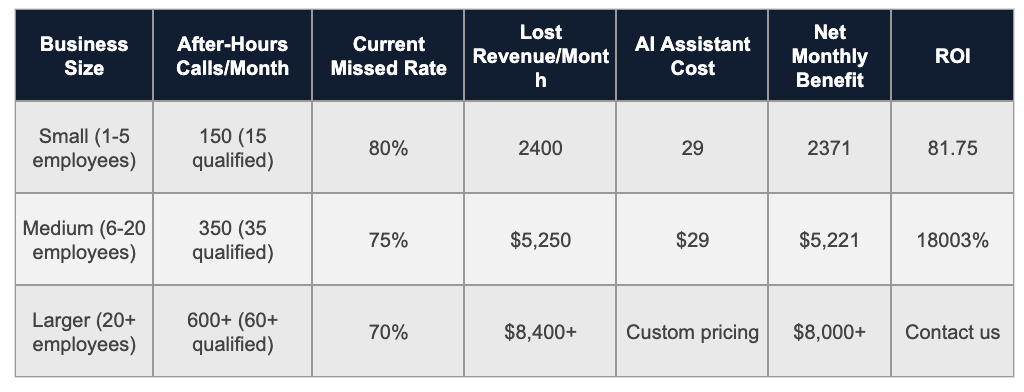
Sources & Assumptions: Example calculations based on $200 average call value and conservative industry conversion rates. Your actual results will vary by industry, location, and call quality.
Want to calculate your specific ROI? Visit our pricing calculator for personalized estimates.
Frequently Asked Questions About Out-of-Hours Call Handling
Will customers actually talk to an AI assistant?
Many customers readily engage with well-designed AI assistants, especially when they solve problems quickly. Most callers prioritize getting their appointment booked or question answered over whether they’re speaking with a human or AI. However, some customers may prefer human interaction, so consider providing options when possible.
How accurate is AI at understanding different accents and speaking styles?
Modern AI speech recognition handles most regional accents and speaking patterns reasonably well, though accuracy varies. Background noise, very strong accents, or technical terminology may occasionally cause issues. Most AI systems continue improving through machine learning.
What happens with true emergencies during out-of-hours calls?
AI assistants can be programmed to recognize emergency keywords and escalate appropriately—typically by immediately texting or calling you with caller details. However, you’ll need to clearly define what constitutes an emergency for your specific business during setup. Note that Voctiv can’t handle medical emergencies and should not be used as an emergency medical response system.
Can AI integrate with my existing calendar and booking system?
Most modern AI phone assistants integrate with popular calendar platforms like Google Calendar and many scheduling systems. They typically sync in real-time to prevent double-booking, though integration capabilities vary by provider.
What’s the difference between “out-of-hours” and “after-hours” call handling?
“Out-of-hours” is primarily British terminology, while “after-hours” is more common in American English. Both terms describe the same concept: managing business calls outside normal operating hours. The solutions and benefits are identical regardless of terminology.
How much does professional after-hours coverage typically cost?
Costs vary widely depending on the solution. Basic voicemail costs $10-30 monthly, traditional answering services range from $200-1,200 monthly, while AI assistants typically cost under $50 monthly. The key is calculating potential revenue recovery versus service costs. Learn more about Voctiv’s pricing options.
Can AI assistants provide medical advice or diagnose conditions?
No. AI phone assistants like Voctiv provide administrative support only—they can’t give medical advice, diagnose conditions, or handle medical emergencies. They’re designed for appointment scheduling, answering general business questions, and routing urgent matters to appropriate personnel. Medical questions should always be directed to qualified healthcare professionals.
Conclusion: Transform Your Business Communication
Effective out-of-hours call handling isn’t optional in today’s competitive market. Whether you choose traditional answering services or modern AI assistants, the key is ensuring no genuine opportunity slips through when you’re unavailable.
For small businesses looking to maximize ROI, AI phone assistants offer compelling advantages: 24/7 availability, automatic appointment booking, spam filtering, and costs significantly below traditional solutions. However, the best choice depends on your specific industry requirements, call volume, and customer preferences.
Start by implementing basic call forwarding, then upgrade to more sophisticated solutions as your business grows. The investment in professional after-hours answering typically pays for itself through recovered revenue within the first month.
For more guidance, explore our resource library with implementation guides and success stories. Ready to see results in action? Check out our customer success stories or start with a free trial.
About This Guide
Author: Voctiv Editorial Team – Business Communication Specialists
Reviewed by: Small Business Technology Advisory Panel
Last updated: 2025-01-02
Expertise: Over 5 years helping small businesses optimize phone communication and reduce missed opportunities through technology solutions.
Questions about implementing after-hours call handling? Contact our team for personalized guidance.
AI Answering Service vs. Office Receptionists and Answering Services: Transforming Small Business Communications
AI Call Assistant vs Office Receptionist vs Answering Service: Which Is Best for Your Small Business?
Executive Summary
Missed calls cost small businesses thousands in lost revenue annually. This guide compares three call management solutions—office receptionists, traditional answering services, and AI assistants—to help you choose what’s right for your business.
Key takeaways:
- AI solutions cost 99% less than traditional receptionists
- 24/7 availability ensures you never miss opportunities
- Instant setup gets you running in minutes, not weeks
- Unlimited scalability handles call spikes effortlessly
- Consistent service quality without human variability
Discover which solution fits your needs and budget below.
Understanding Your Call Management Options
Digital transformation has revolutionized how small businesses handle customer calls. Each option offers distinct advantages depending on your needs, budget, and growth plans.
Option 1: Office Receptionists
Hiring an in-house receptionist remains popular for businesses wanting that personal touch. They handle calls, schedule appointments, greet visitors, and provide administrative support.
What It Costs
Expect to pay around $30,000 annually in salary alone. Factor in benefits, office space, equipment, and training—you’re looking at $45,000 or more per year.
The Benefits
Personal interaction creates strong customer relationships. Your receptionist can resolve issues immediately and represents your brand face-to-face.
The Limitations
Coverage ends when they leave for the day. High call volumes require additional staff. Sick days and vacations create gaps in service.
Option 2: Traditional Answering Services
These services use off-site human operators to handle your calls. They offer more flexibility than hiring staff but come with their own trade-offs.
Service Features
Operators take messages, provide customer support, and sometimes process orders. Many services offer after-hours coverage and basic call routing.
Pricing Structure
Setup fees plus monthly charges typically run $2,500 to $12,000+ annually. Costs increase with call volume and additional features.
Advantages
Extended availability beyond business hours. Scales better than a single employee. No need for office space or equipment.
Drawbacks
Service quality varies based on operator skill. Less personalized than in-house staff. Additional charges can add up quickly.
Option 3: AI Call Assistants
AI-powered answering services like Voctiv AI Call Assistant represent the newest innovation in business communications. They combine automation with intelligence.
Core Capabilities
Always available—every day, all year. Automatically blocks spam calls. Schedules appointments directly into your calendar. Provides transcripts and summaries of each conversation.
Investment Required
Starting at approximately $99 annually. That’s a fraction of what you’d spend on traditional solutions.
Key Strengths
Handles unlimited calls simultaneously. Setup takes just minutes. No training or management needed. Consistent quality every single time.
Considerations
Some customers still prefer human interaction. Best suited for straightforward administrative tasks rather than complex problem-solving.
Side-by-Side Comparison
Let’s break down how these options stack up across the metrics that matter most to small businesses.
| Feature | Office Receptionist | Answering Service | AI Assistant |
|---|---|---|---|
| Annual Cost | $45,000+ | $2,500-$12,000+ | ~$99 |
| Availability | Business hours only | Extended hours | 24/7/365 |
| Setup Time | Weeks to months | Days to weeks | 2 minutes |
| Scalability | Limited | Moderate | Unlimited |
| Service Consistency | Variable | Variable | Consistent |
| Additional Costs | Benefits, space, equipment | Feature add-ons, peak fees | None |
Real Business Results
Theory matters less than practice. Here’s how actual businesses have benefited from switching to AI call management.
E-commerce Success Story
A growing online retailer struggled during promotional periods when call volume spiked. After implementing Voctiv AI Call Assistant, they achieved 24/7 customer support without hiring additional staff. Result? A 30% jump in resolved queries and happier customers.
Medical Practice Transformation
A local clinic needed better appointment management to reduce no-shows. They switched from their traditional receptionist to Voctiv’s AI solution. The outcome was remarkable—no-shows dropped 20% while administrative costs fell by half.
Making Your Decision
The right choice depends on your specific situation. Consider these factors carefully.
Assess Your Call Volume
How many calls do you receive daily? Do you experience seasonal spikes? High volume favors automated solutions that scale effortlessly.
Calculate Total Costs
Look beyond base salary or subscription fees. Include benefits, training, equipment, overhead, and opportunity costs from missed calls.
Consider Your Growth Plans
Will your call volume double next year? Choose a solution that grows with you without requiring major reinvestment.
Evaluate Service Requirements
Do callers need complex problem-solving or straightforward information? Simple needs work perfectly with AI, while complex situations may benefit from human judgment.
For most small businesses, Voctiv AI Call Assistant offers the best combination of affordability, reliability, and scalability. Learn more about Voctiv’s featuresor explore pricing options.
The Future of Business Communications
AI isn’t just a trend—it’s becoming standard practice for forward-thinking businesses. The technology continues advancing rapidly.
What’s Coming Next
Advanced natural language processing will handle increasingly complex conversations. Predictive capabilities will anticipate customer needs before they call. Integration with IoT devices will create seamless automated experiences across your entire operation.
Competitive Advantages for Small Businesses
AI levels the playing field. Small companies can now offer customer service that rivals major corporations—at a fraction of the cost.
You’ll build a reputation for reliability when every call gets answered. Your team focuses on strategic work instead of routine tasks. Analytics reveal patterns in customer behavior you can act on.
Key Questions to Answer
Before committing to any solution, ask yourself:
- What’s the typical volume and nature of your incoming calls?
- How critical is round-the-clock availability to your customers?
- What are the true long-term costs of each option?
- How will you use data from calls to improve your business?
Final Thoughts
Customer service can make or break your business. Effective communication that’s both efficient and affordable isn’t optional anymore—it’s essential.
AI answering services transform how businesses of all sizes handle customer interactions. With Voctiv AI Call Assistant, you don’t just meet customer expectations—you exceed them. You retain existing customers while attracting new ones.
Don’t let another opportunity slip away. Upgrade to Voctiv today and experience the future of customer communications. Visit our homepage to get started, or check out more resources on improving your business communications.
Visual Voicemail Not Working – Ultimate Guide for Major US Carriers & Smartphones
Visual Voicemail Not Working – Ultimate Guide for Major US Carriers & Smartphones
- Introduction – What is Visual Voicemail?
- Visual voicemail is not working – Android
- Visual voicemail is not working – Iphone
- Visual voicemail is not working – Samsung
- Visual voicemail is not working – Verizon
- Visual voicemail is not working – T-Mobile
- Visual voicemail is not working – AT&T
- Visual voicemail is not working – Boost
- Visual voicemail is not working – Cricket Mobile
Are you frustrated with your visual voicemail not working as expected? Whether you’re using an iPhone, Android, or any major US carrier, this universal issue can disrupt your day-to-day communications, leaving you without access to crucial voice messages. In our comprehensive guide, we dive deep into the common causes and provide expert solutions for resolving visual voicemail issues across all major devices and carriers. Say goodbye to missed messages and hello to seamless voicemail functionality!
Introduction – What is Visual Voicemail?
If you’re frequently missing calls or spending too much time managing your voicemails, visual voicemail could be the solution you need. This technology revolutionizes how you handle voicemail, making it more accessible and time-efficient for everyday users.
Understanding Visual Voicemail
Visual voicemail allows users to view a list of their voicemail messages directly on their device’s screen without needing to dial into their voicemail service. This system automatically transcribes the audio from your messages into text, enabling you to quickly read through and prioritize them based on importance. This means no more listening to each voicemail in chronological order; instead, you can select which messages to listen to or read at your convenience.
Visual voicemail provides detailed information about each message, such as the caller’s identity, the duration of the message, and a transcript of its content. This feature allows for a more streamlined approach to managing voicemails, saving you valuable time and effort.
Voctiv AI Call Assistants: A Step Beyond
While traditional visual voicemail offers significant advantages, Voctiv AI Call Assistants takes this functionality to the next level. Voctiv not only provides transcription of your calls but also uses advanced AI to create concise summaries of each call. With Voctiv, users can quickly scan through these summaries, taking just a second to determine the relevance and urgency of each message. This feature is particularly useful for busy professionals who need to efficiently manage a high volume of calls.
Voctiv AI Call Assistants ensure that you don’t miss out on important communications and help streamline your workflow by reducing the time spent on listening to or reading lengthy voicemail transcriptions. By focusing on the essentials provided in the call summaries, you can decide in an instant whether to delve deeper into the details of the voicemail.
For more information on how Voctiv can transform your communication management, visit ai.voctiv.com. Discover how easy it is to stay on top of your calls without getting bogged down by traditional voicemail systems. Voctiv is here to simplify your life, one call at a time.
Visual voicemail is not working – Android
Visual voicemail enhances the traditional voicemail experience by allowing Android users to see a list of messages and choose which ones to listen to or read through transcripts. This functionality eliminates the need to dial into a voicemail system and navigate through voice prompts. However, there are occasions when visual voicemail may stop functioning properly. Here’s a concise guide on how to address and resolve common issues with visual voicemail on Android devices:
- Check Network Connection: Ensure your device is connected to Wi-Fi or has a strong cellular signal, as visual voicemail requires a solid network connection to function. Toggling Airplane mode on and off can also help refresh your connection.
- Restart Your Device: Often, a simple restart can solve many technical issues. For Samsung phones, press and hold the Power button, choose “Restart,” and confirm. For other Android devices, hold the Power button to access the restart option directly from the Options menu.
- Toggle Visual Voicemail: Navigate to your Phone app settings and verify that Visual Voicemail is activated. If it is, try turning it off, wait for a minute, and then re-enable it to reset its functionality.
- Software Updates: Regular updates are crucial as they often include fixes for bugs that may impair visual voicemail. Check your device for any pending software updates and install them.
- Clear Cache and Data: Corrupted files within the app can hinder performance. To clear these, go to Settings > Apps & Notifications > Phone > Storage & cache, then select “Clear cache” and “Clear storage.”
- Contact Your Carrier: If the issue persists, it might be due to a problem from your carrier’s end, such as service outages or account-specific issues. Contacting your carrier can confirm and resolve these concerns.
- Factory Reset: As a last resort, if none of the above methods work, consider performing a factory reset. Ensure you back up all important data as this process will erase everything on your device.
By following these steps, Android users can often resolve issues with visual voicemail not working, ensuring they continue to enjoy the convenience of modern voicemail functionality.
Visual voicemail is not working – Iphone
Introduction
Visual voicemail on iPhones has transformed how we manage our voicemail messages, allowing users to view a list of messages and listen to them selectively. Despite its conveniences, users occasionally encounter issues preventing visual voicemail from functioning properly. This guide offers both troubleshooting steps for common issues and an innovative alternative solution using Voctiv AI Call Assistants.
Common iPhone Voicemail Problems and Solutions
- Proper Setup: Ensure your visual voicemail is correctly set up. Open the Phone app, tap the Voicemail tab, and follow the setup instructions if you see a “Set Up” button.
- Force Restart Phone App: If voicemail isn’t working, try force closing the app. Swipe up from the bottom of your screen, locate the Phone app, and swipe up to close it. Relaunch the app to see if the issue is resolved.
- Disable Call Forwarding: Call forwarding can prevent voicemails from being received. Check this by going to Settings > Phone > Call Forwarding and ensure it’s turned off.
- Check Voicemail Capacity: A full voicemail box can stop new messages from being stored. Delete old messages from the Voicemail tab in the Phone app to free up space.
- Carrier and Network Issues: Sometimes issues stem from your cellular carrier or network connection:
- Dial into your voicemail manually to check for carrier issues.
- Turn on Airplane Mode briefly, then turn it off to reset network connections.
- Check for carrier updates in Settings > General > About, and follow prompts if an update is needed.
- Wi-Fi Calling: If you’re in a poor connectivity area, enable Wi-Fi Calling in Settings > Cellular > Wi-Fi Calling to improve voicemail delivery.
- Reset Network Settings: As a last resort, reset your network settings by going to Settings > General > Reset > Reset Network Settings. This action will erase all network settings, returning them to factory defaults.
Voctiv AI Call Assistants: A Revolutionary Solution
If troubleshooting doesn’t resolve your visual voicemail issues, consider Voctiv AI Call Assistants. This app not only offers visual voicemail capabilities but enhances the experience by using advanced AI to create concise summaries of each call. This feature allows you to quickly ascertain the importance of each message without listening to the entire voicemail or reading lengthy transcriptions.
Benefits of Voctiv AI Call Assistants:
- Efficient Communication Management: Voctiv’s AI generates summaries of voicemails, enabling you to understand the content in seconds and decide if further review is needed.
- Easy Setup: Download Voctiv from ai.voctiv.com and follow the straightforward setup process to integrate it with your iPhone.
- Enhanced Accessibility: Access voicemail summaries anytime, anywhere, directly from your smartphone, making it perfect for busy professionals on the go.
Conclusion
While iPhone’s built-in visual voicemail generally offers a reliable service, encountering issues can be frustrating. By following the troubleshooting steps provided, you can often quickly resolve common problems. For those looking for an upgrade or facing persistent issues, Voctiv AI Call Assistants provides a powerful alternative, enhancing the traditional voicemail experience with the efficiency of AI technology. Visit ai.voctiv.com to discover more and streamline your voicemail management today.
Visual voicemail is not working – Samsung
Troubleshooting Visual Voicemail on Samsung Galaxy Devices
Visual voicemail is a valuable feature for Samsung Galaxy users, providing an easy way to manage voicemail messages visually rather than through audio playback. However, like any technology, it may sometimes encounter issues. If you find that visual voicemail has stopped working on your Samsung device, such as the Galaxy, here’s a proven solution to resolve this issue.
Step-by-Step Solution to Restore Visual Voicemail Functionality
- Force Stop the Visual Voicemail App:
- Navigate to Settings > Apps > Visual Voicemail on your Samsung Galaxy.
- Tap on ‘Force stop’. This action is crucial as it terminates any ongoing processes that may be interfering with the app’s functionality.
- Clear Cache and Data:
- After forcing the app to stop, tap on ‘Storage’ within the same app settings.
- Select ‘Clear cache’ to remove temporary files that could be corrupt or causing the app to perform poorly.
- Then choose ‘Clear data’ to reset the app to its original state. Note that this step will erase all app settings, so you will need to set up your voicemail again.
- Reopen and Set Up Visual Voicemail:
- Return to your home screen and open the Visual Voicemail app.
- The app should prompt you to go through its setup process again. Follow the on-screen instructions to grant necessary permissions and configure your voicemail preferences.
By following these steps, many Samsung Galaxy users have successfully restored functionality to their visual voicemail service. This process helps ensure that the app runs on the latest settings without any corrupted data hindering its performance.
Alternative Solution with Voctiv AI Call Assistants
If resetting your visual voicemail doesn’t solve the problem or if you’re looking for a more robust solution, consider the Voctiv AI Call Assistants app. Voctiv enhances the traditional visual voicemail experience by providing not only transcriptions but also intelligent summaries of each voicemail. This AI-driven approach allows you to quickly grasp the essence of your messages without needing to listen to or read through each one in detail.
Key Benefits of Voctiv AI Call Assistants:
- AI Summaries: Get concise summaries of voicemail messages, enabling quick and effective communication management.
- Easy Integration: Easily set up Voctiv on your Samsung device by visiting ai.voctiv.com and following the simple installation instructions.
- Advanced Features: Beyond traditional voicemail management, Voctiv offers features like spam call filtering and priority alerts, making it an ideal choice for busy professionals.
Whether you choose to troubleshoot using the provided steps or upgrade to Voctiv AI Call Assistants, managing your voicemail on a Samsung Galaxy device can be seamless and efficient.
Visual voicemail is not working – Verizon
Resolving Issues with Verizon’s Visual Voicemail
Verizon’s Visual Voicemail offers a convenient way to manage voicemails without having to listen to them in real-time. However, users sometimes encounter issues with accessing messages or receiving notifications. If you’re experiencing problems with Verizon’s Visual Voicemail, here are several troubleshooting steps that can help resolve these issues effectively.
Step-by-Step Troubleshooting Guide
- Check Mobile Data Connection: Visual Voicemail requires a stable connection to Verizon’s cellular data network. Ensure your mobile data is activated and you can access data with Wi-Fi turned off. If mobile data is disabled or you are outside the coverage area, you won’t receive messages or notifications.
- Power Cycle Your Phone: Often, a simple restart of your device can resolve temporary glitches. Turn off your phone, wait a few seconds, then turn it back on to refresh its connection to the network.
- Reset the Voicemail App:
- Navigate to Settings > Apps or Applications.
- Locate the Visual Voicemail App, tap on it, then select ‘Force Stop’ to halt any ongoing processes.
- Next, tap Storage > Clear Data to reset the app without deleting your messages.
- Reopen the Visual Voicemail app and follow any on-screen prompts to set it back up.
- Check Call Forwarding Settings: If call forwarding is enabled, calls may be forwarded to another number instead of going to your voicemail. To disable call forwarding, dial *73 and wait for the confirmation beeps. If *73 doesn’t work, try *920 to turn off all forwarding settings.
- Manage Voicemail Password: If needed, reset your voicemail password through the My Verizon Mobile app under Menu > Account > Account Settings > Security Tab > Manage Voicemail Password. Alternatively, you can reset your password by calling *611 and following the automated prompts.
- Clear Stuck Notifications: If your voicemail notification won’t clear or you aren’t receiving new message alerts, try leaving yourself a voicemail from another phone. Then, using your device, dial 86, listen to and delete the message. Exit the voicemail system by pressing the () button until the call ends to reset the notification status.
Using Voctiv AI Call Assistants for Enhanced Voicemail Management
If you continue to face issues with Verizon’s Visual Voicemail or seek a more advanced solution, consider using Voctiv AI Call Assistants. This innovative app not only provides visual voicemail functionality but also enhances it with AI-driven features, including concise summaries of each voicemail. This allows you to quickly gauge the importance of each message without needing to listen to the entire content.
Benefits of Voctiv AI Call Assistants:
- AI Summaries: Get quick insights into your voicemails through AI-generated summaries, saving you time and enhancing productivity.
- Reliable Notifications: Ensure you never miss important messages with reliable alert systems.
- Easy Setup and Use: Integrate seamlessly with your existing Verizon service for a smooth user experience.
For more information and to enhance your voicemail management, visit ai.voctiv.com. With Voctiv, experience a new level of convenience and efficiency in handling your voicemails on the Verizon network.
Visual voicemail is not working – T-Mobile
Troubleshooting Visual Voicemail Issues on T-Mobile
For T-Mobile users, visual voicemail offers a streamlined way to manage voicemail messages without needing to listen to them in real-time. However, various issues can sometimes disrupt this convenience, affecting how voicemails are received, downloaded, or played. This section will guide you through common problems and solutions for visual voicemail on T-Mobile devices.
Initial Checks and Setup
Before diving into specific troubleshooting steps, ensure the following basics are covered:
- Voicemail Setup: Confirm that your voicemail is properly set up on your device.
- Signal Strength: Your device should display at least two signal bars. Low signal strength can impact voicemail functionality.
- Device Memory: Ensure your device has at least 15% free memory. Insufficient space can prevent new messages from downloading.
Common Visual Voicemail Issues and Solutions
- No Voicemail Notifications:
- If you’re not receiving notifications for new voicemails, ensure your text message inbox isn’t full. A full inbox can block new notifications. Consider deleting old texts or backing them up first.
- Issues Calling Voicemail:
- Try alternative methods to access your voicemail, such as dialing 1-805-MESSAGE (1-805-637-7243) if you’re using a non-T-Mobile phone.
- If you are roaming internationally, check the specific steps for voicemail access on T-Mobile’s International roaming checklist.
- Calls Not Forwarding to Voicemail:
- Reset your call forwarding settings by dialing ##004# and sending the command.
- Disable Wi-Fi Calling temporarily to check if it interferes with call forwarding.
- Visual Voicemail Messages Not Downloading:
- Restart your phone to refresh your network connection.
- Turn off Wi-Fi to ensure you are connected to T-Mobile’s cellular network.
- For Android users, update your T-Mobile Visual Voicemail app via Google Play, sync your inbox, and clear the app cache and data if necessary.
- Poor Audio Quality in Voicemails:
- If only a few messages are affected, the issue might be on the caller’s end. Ask them to call again or check their service provider for issues.
- If all messages are affected, save the problematic voicemails and consult T-Mobile’s support for potential audio issues on calls.
Leveraging Voctiv AI Call Assistants for Enhanced Voicemail Management
If troubleshooting doesn’t resolve the issues or you’re seeking a more advanced solution, consider Voctiv AI Call Assistants. This application enhances traditional visual voicemail by providing not only transcriptions but also AI-generated summaries of each voicemail. This allows T-Mobile users to quickly understand the content and importance of each message without listening to the entire recording.
Key Features of Voctiv AI Call Assistants:
- AI-Driven Summaries: Get concise, clear summaries of each voicemail, enabling you to prioritize which messages to address first.
- Streamlined Setup: Easy to install and integrate with your existing T-Mobile service, enhancing your voicemail experience without hassle.
- Reliable Functionality: Ensures you never miss important details in your voicemails, even when traditional visual voicemail services falter.
For more information on how Voctiv can transform your voicemail management, visit ai.voctiv.com. Discover a superior way to handle your voicemails with Voctiv, simplifying communication and saving time every day.
Visual voicemail is not working – AT&T
Troubleshooting Visual Voicemail on AT&T
For AT&T users experiencing issues with visual voicemail on their devices, such as receiving error messages or the service not functioning as expected, here is a helpful guide based on successful solutions provided by AT&T’s support.
Common Issues and Solutions for Visual Voicemail on AT&T
Visual voicemail can stop working for a variety of reasons, from network issues to software glitches. If you encounter an error like “9999” or find that your visual voicemail isn’t displaying messages, try the following steps to resolve the issue:
- Clear Cache and Data:
- Navigate to Settings > Apps > Visual Voicemail > Storage.
- Select “Clear Cache” and “Clear Data.” Note that clearing data will delete any stored voicemails, so ensure you have listened to or saved important messages elsewhere before proceeding.
- Reboot Your Phone:
- Restarting your device can often resolve minor glitches affecting apps, including visual voicemail. Simply turn your phone off and then back on.
- Disable Wi-Fi:
- Temporarily turning off Wi-Fi and using mobile data can help establish a stable connection necessary for visual voicemail to function correctly.
- Leave Yourself a Voicemail:
- After restarting, call your number from another phone and leave a voicemail. This can help kickstart the voicemail system to display new messages.
- Check Voicemail Setup and Permissions:
- Ensure that visual voicemail is set up correctly on your device. Go to the Voicemail tab in your Phone app and follow setup instructions if it appears to be unset.
- Verify that the app has all necessary permissions enabled, which can be checked under Settings > Apps > Visual Voicemail.
- Reset Network Settings:
- If the above steps don’t resolve the issue, you may need to reset your network settings. Go to Settings > General management > Reset > Reset network settings. Remember, this will erase all network settings, including Wi-Fi passwords and paired Bluetooth devices, so you will need to re-enter these details.
- Manage Voicemail Password:
- Sometimes, resetting your voicemail password can resolve access issues. This can be done online through your AT&T account under My wireless > My devices & add-ons > Manage my device > Device options & settings > Reset voicemail password.
- Contact AT&T Customer Service:
- If all else fails and the issue persists, or if you receive a specific error message that you cannot troubleshoot on your own, contacting AT&T customer support or visiting an AT&T store can provide further assistance.
Alternative Solution: Voctiv AI Call Assistants
If you frequently encounter issues with AT&T’s visual voicemail service, or if you’re looking for a more robust voicemail management solution, consider trying Voctiv AI Call Assistants. This advanced app not only manages traditional voicemail but also enhances it with AI technology to provide transcriptions and concise summaries of each call. This feature allows users to quickly assess the importance of each message without listening to the entire voicemail.
Key Benefits of Voctiv AI Call Assistants:
- Efficient Message Management: Quickly browse through voicemail summaries to prioritize responses.
- AI-Enhanced Transcriptions: Get accurate and concise transcriptions of every voicemail, saving you time and enhancing productivity.
- Easy Integration: Voctiv is simple to set up and integrates seamlessly with your existing mobile service.
For more details and to experience the advanced capabilities of Voctiv AI Call Assistants, visit ai.voctiv.com. Enhance your voicemail experience and ensure you never miss out on important messages again.
Visual voicemail is not working – Boost
Challenges with Visual Voicemail on Boost Mobile Devices
Boost Mobile users, particularly those with Motorola G-series phones, have reported issues with their visual voicemail service, especially following network changes after the buyout by Dish. Users have encountered problems ranging from inability to connect to the visual voicemail service to receiving error messages and not getting voicemail notifications. This guide provides steps for troubleshooting these issues based on user experiences and solutions that have proven effective.
Troubleshooting Steps for Visual Voicemail on Boost Mobile
- Check App Functionality:
- Begin by ensuring that the visual voicemail app is properly installed. If it’s not working, try uninstalling and reinstalling the app to see if this resolves the connection issues.
- If reinstalling doesn’t help, clear the app’s cache and data through your device settings. Go to Settings > Apps > Visual Voicemail > Storage, then select “Clear Cache” and “Clear Data.”
- Network and Device Checks:
- Ensure that your device has a strong network connection. Visual voicemail requires a solid connection to download messages. If you see fewer than two signal bars, try moving to an area with better coverage.
- Verify that your device has sufficient storage space. If your phone’s memory is nearly full, free up space as the visual voicemail app requires at least 15% free memory to function correctly.
- Reset Network Settings:
- Sometimes, resetting the network settings can help resolve underlying issues that affect app performance. This can be done by navigating to Settings > System > Advanced > Reset Options > Reset Wi-Fi, mobile & Bluetooth. Be aware that you will need to reconnect to Wi-Fi networks and re-pair Bluetooth devices afterward.
- Manual Voicemail Checks:
- If the visual voicemail app continues to malfunction, dial your voicemail manually to ensure messages are being received. You can typically access your voicemail by holding the ‘1’ key on your dial pad or by dialing your own number from your phone.
- Customer Support Interaction:
- If none of the above solutions work, reaching out to Boost Mobile customer care is advisable. Though customer support experiences can vary, they can often initiate more detailed troubleshooting or escalate the issue as needed.
- Alternative Voicemail Applications:
- As some users have found, switching to an alternative visual voicemail application like YouMail and setting it up as if on another network (e.g., T-Mobile, given Boost uses their network) can be a temporary workaround.
Considerations When Using Third-Party Voicemail Apps
While third-party apps can offer a solution when the default visual voicemail doesn’t function, it’s important to download apps from reputable sources. Downloading apps from unofficial sources like APKPure can pose security risks, as these platforms may inadvertently host apps with embedded malicious code.
For users looking for a reliable and enhanced voicemail experience, considering advanced solutions like Voctiv AI Call Assistants could be beneficial. Voctiv provides not only traditional visual voicemail functionalities but also incorporates AI technology to create summaries of voicemail messages, offering a quick understanding of each message’s content without the need to listen to or read the entire message.
Enhanced Voicemail Management with Voctiv AI Call Assistants
Voctiv AI Call Assistants transform how you manage voicemail by providing efficient and intelligent summaries, ensuring that you never miss important information due to voicemail malfunctions. For more information and to enhance your voicemail experience, visit ai.voctiv.com.
By exploring these troubleshooting steps and considering advanced voicemail solutions, Boost Mobile users can effectively manage and resolve issues with their visual voicemail service.
Visual voicemail is not working – Cricket Mobile
Troubleshooting Cricket Visual Voicemail Issues
Cricket Visual Voicemail transforms the traditional voicemail experience by allowing users to see a list of their messages and manage them directly from their devices. However, like any technology, it can occasionally run into issues. Here’s a guide to help Cricket Mobile users resolve common visual voicemail problems effectively.
Understanding Cricket Visual Voicemail
Cricket Visual Voicemail lets users personalize their experience by viewing, playing, deleting, or saving messages directly to their memory card. Users can also export messages for use elsewhere. This service is typically free when receiving voicemails but may count against your high-speed data quota if responses are sent via email.
Setup Process for Cricket Visual Voicemail
Setting up visual voicemail on Cricket involves a few key steps:
- Download the Cricket Visual Voicemail app from the Google Play Store.
- Launch the app, accept the Cricket Privacy Policy, and agree to the Terms of Service.
- Begin setup by creating a password (numeric only, 7-15 digits) and setting up a greeting. You can choose a standard greeting or record a custom one.
- Once the setup is complete, you can access your voicemails in the Inbox or Saved tabs within the app.
Common Issues and Solutions
- App Not Working After Setup:
- If the visual voicemail app fails to function after following the setup instructions, check the following common issues and their solutions.
- Clear Cache and Data:
- Navigate to Settings > Applications > Cricket Visual Voicemail > Storage.
- Tap on “Clear Data” and “Clear Cache” to remove stored data that might be causing issues.
- Update the App:
- Ensure you have the latest version of the Cricket Visual Voicemail app. Updates often include bug fixes that could resolve operational issues. Check the Google Play Store for any available updates.
- Uninstall and Reinstall the App:
- Sometimes, a fresh installation is needed to fix glitches. Uninstall the app and then reinstall it from the Play Store. Remember to back up any important data before uninstalling.
- Check the Cricket Wireless Number:
- Incorrect phone number settings can interfere with visual voicemail functionality. If you’re using a ported phone or recently changed numbers, ensure the correct Cricket number is configured in your voicemail settings.
- Compatibility Issues:
- If you notice problems after an Android OS update (e.g., to Android 10), there may be compatibility issues with the new software version. Contacting Cricket support or checking forums for your specific device model can provide solutions tailored to these compatibility problems.
Final Advice
If you’ve tried all the above solutions and still face issues with Cricket Visual Voicemail, it may be helpful to reach out to Cricket’s customer support for further assistance. They can offer more in-depth troubleshooting, especially if there might be a network-related issue affecting your service.
Using Advanced Solutions Like Voctiv AI Call Assistants
For those seeking a more robust solution or facing continuous issues with Cricket’s Visual Voicemail, consider using Voctiv AI Call Assistants. This advanced tool not only manages voicemail but also provides enhanced features like voicemail transcription and intelligent summaries, allowing for efficient communication management.
For more details and to experience the capabilities of Voctiv AI Call Assistants, visit ai.voctiv.com. Upgrade your voicemail management system and ensure seamless communication, regardless of network changes or app issues.
Create Professional Voicemail Greetings with AI
Why Your Voicemail Greeting Matters More Than You Think
First impressions matter. Every call could be your next big opportunity, yet most businesses still rely on outdated voicemail systems. The impersonal “Please leave a message after the beep” doesn’t reflect the attentive service you provide. AI technology bridges this gap, turning voicemail into a powerful growth tool.
The Hidden Cost of Generic Voicemail
Picture this: every missed call is a lost opportunity. For countless businesses, it’s reality. Traditional voicemail lacks personality, causing potential customers to hang up. They want interaction and assurance their concerns will be addressed—something a generic greeting can’t deliver.
How AI Transforms Voicemail Communication
AI voicemail systems change the game completely. They deliver customized, intelligent responses that engage callers and encourage meaningful interaction. This isn’t just recording a message—it’s creating dialogue from the first moment of contact.
Key Features That Make the Difference
- 24/7 Availability: Your business stays accessible around the clock, greeting every caller professionally.
- Calendar Integration: Missed calls become scheduled appointments automatically.
- Spam Filtering: AI screens unwanted calls, letting you focus on what matters.
- Personalized Responses: Each interaction feels tailored to the caller’s specific needs.
- Smart Summaries: AI-generated transcriptions help you prioritize follow-ups efficiently.
Real Results From Real Businesses
Business owners report dramatic shifts after integrating AI voicemail. A home remodeling entrepreneur noticed clients viewed their company as more professional and reliable. This perception shift, enabled by seamless AI interaction, allowed for better service offerings and stronger client relationships.
Getting Started Is Simple
Modern AI voicemail assistants are remarkably user-friendly. There’s no complex setup or technical expertise required. A quick download and a few clicks get you running—it’s genuinely plug-and-play. Most mobile numbers work seamlessly, making this a universal upgrade rather than a niche solution.
Why This Investment Makes Sense
Adopting AI for voicemail isn’t about chasing technology trends. It’s about setting new standards for customer interaction. You’re investing in your brand’s image, operational efficiency, and bottom line. The features streamline daily operations while elevating customer service to new heights.
Comparing Your Options
| Feature | Traditional Voicemail | AI Voicemail Assistant |
|---|---|---|
| Availability | Limited to recording | 24/7 interactive responses |
| Personalization | Generic greeting | Tailored to each caller |
| Calendar Integration | None | Automatic scheduling |
| Spam Protection | None | Built-in filtering |
| Message Summary | Listen to each message | AI-generated transcripts |
Taking the Next Step
Moving to AI-powered communication is straightforward. With resources and support readily available, transitioning to an AI system is designed for business owners who value their time and customer experience above everything else.
Learn more about affordable AI solutions that fit your business needs.
Your Next Call Could Change Everything
Attention has become the new currency. Ensuring your business communicates effectively isn’t optional anymore. AI voicemail assistants let you exceed expectations, transforming every call into a chance to showcase your professionalism and attentiveness.
Don’t miss another opportunity. Embrace smarter communication and upgrade your voicemail from mundane to memorable. Discover how at ai.voctiv.com, and redefine your business’s first impression today.
For more insights on improving customer communication, explore our complete guide to AI phone systems.
How to Set Up Voicemail on Your iPhone: A Step-by-Step Guide
How to Set Up Voicemail on Your iPhone: A Complete 2025 Guide
Getting a new iPhone or switching carriers means you’ll need to set up voicemail from scratch. Since your carrier hosts this service, it won’t activate automatically. This guide walks you through the setup process and introduces a smarter alternative that’ll save you time.
Setting Up iPhone Voicemail: Step-by-Step Instructions
Step 1: Open the Phone App
Tap the green icon with a handset on your home screen. This app gives you access to calls, recent activity, and voicemail settings.
Step 2: Select Voicemail
Look for the voicemail icon in the bottom right corner. Tap it to begin setup.
Step 3: Tap “Set Up Now”
If you’re setting up voicemail for the first time, you’ll see a “Set Up Now” button on the voicemail tab.
Step 4: Create a Voicemail Password
Choose a password you’ll remember. You can change it later through your settings if needed.
Step 5: Choose Your Voicemail Greeting
Decide between a default greeting or recording a custom message. If you go custom, you can record and replay it until it sounds right.
Common Voicemail Questions Answered
How Do I Save and Share Voicemails?
Tap the Share icon (the square with an upward arrow) and choose how to save it. You can send it as a voice recording to another device or email.
Why Can’t I See Visual Voicemail?
This feature depends on your carrier. If it’s not showing up, contact your carrier to confirm whether they support visual voicemail.
Can I Access Voicemail from Another Phone?
Yes. Dial your number and press * or # during the greeting. Enter your password to hear your messages.
How Do I Change My Greeting or Password?
Both options are available in your voicemail settings. This lets you keep things personalized and secure.
A Smarter Way to Handle Calls with Voctiv AI Call Assistant
Traditional voicemail works, but it’s not efficient. If you’re managing a busy schedule or running a business, you need something better. Voctiv AI Call Assistant uses artificial intelligence to manage your calls automatically.
AI-Powered Call Screening
Voctiv screens incoming calls intelligently. It filters out spam and sales calls, so only important messages reach you. This means less time sorting through junk.
Automated Responses and Appointment Scheduling
The app answers common questions and books appointments directly into your calendar. Small business owners benefit most—it provides customer service without requiring you to answer every call.
Voicemail Transcription
All voicemails get transcribed and displayed in the app. You can scan messages quickly instead of listening to each one. If you receive many calls daily, this feature alone saves significant time.
What Users Say About Voctiv AI Call Assistant
Real feedback from people using Voctiv daily:
“This app’s incredibly useful for my mobile massage business! The team’s easy to contact if you run into a problem, and they solve it quickly.”
“I’m a small business owner and get tons of calls I just don’t want to answer. Voctiv’s given me so much time back. Voicemails are old school—this app helps because customers interact with it, and if they’re serious about doing business, they’ll book an appointment.”
These testimonials show how Voctiv transforms call management for personal and professional use.
Ready to Upgrade Your Communication?
If you want to streamline voicemail management and boost productivity, Voctiv AI Call Assistant delivers results. Its intelligent screening, automated responses, and transcription features simplify your life.
Visit voctiv.com today to get started. Download Voctiv AI Call Assistant and see the difference in how you manage calls. Don’t let important messages slip away—let Voctiv keep you on top of your communication.